Transferred Data
About
The Transferred Data tab plays a key role for Condition Monitoring. Here it is
determined which data is to be transferred from your Device to NOA Portal.
To select data for transfer, simply check the corresponding box. It is not
necessary to transfer whole folders, you can select exactly the data which you
need at the moment. You need to press Save changes to save your selection.
Anatomy
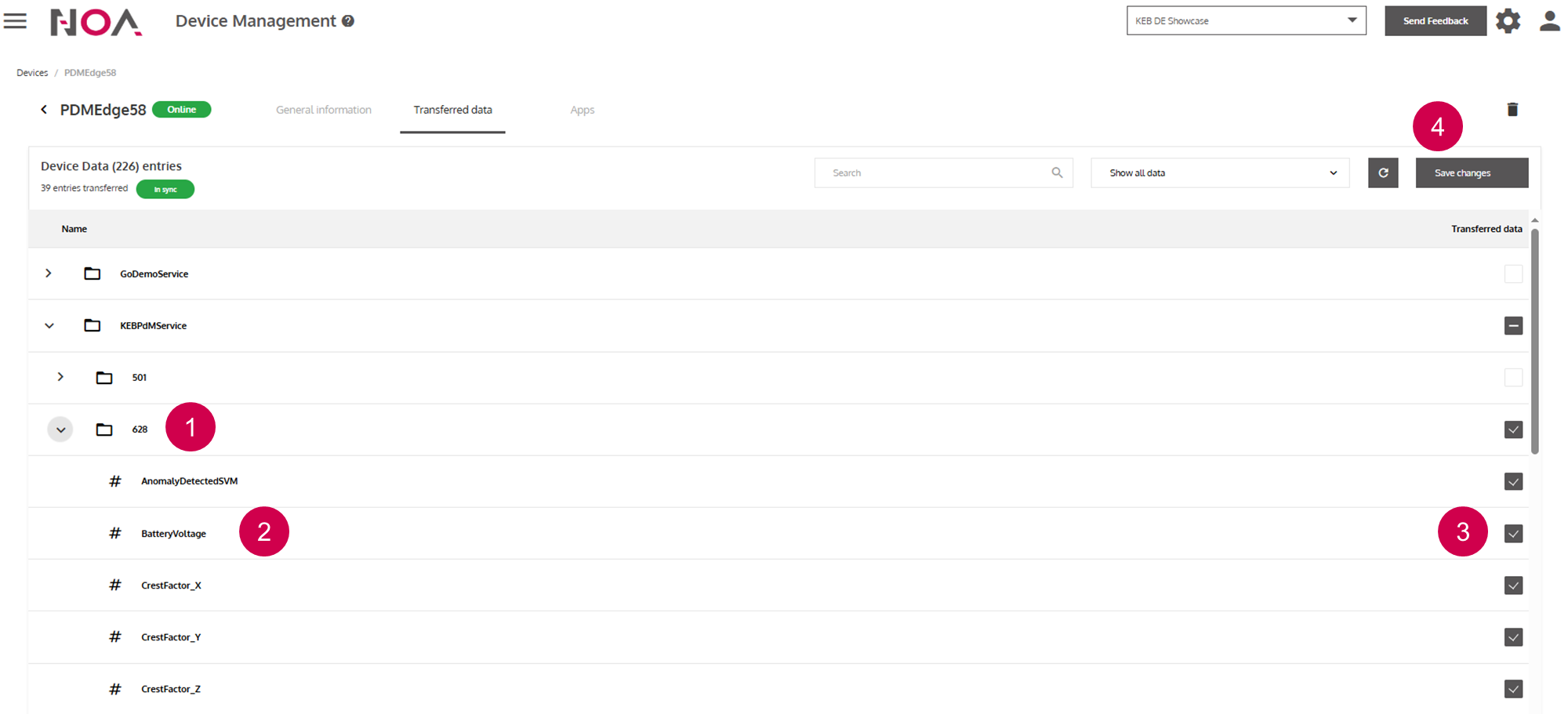
Folders
Data
Checkbox for subscribing to data
Save changes
Folders of your Device Data
Your Device data is structured in the folders above. These are automatically
created, when a KEB Communication App (for example the OPC UA Communication App or the Codesys Communication App) is installed. When no folder
is displayed, that means that you probably do not have the right Communication App installed or you have not configured the Communication App correctly.
Depending on the type of Communication App you are using, you need to check the
documentation of your Communication App for the installation and configuration process.
Device Transferred Data State
| State | Explanation |
|---|---|
| The data received from NOA Portal and send from NOA Core of the device are synchronized. | |
| An update of the data to be transferred is pending. After the update, the device should be In sync again. | |
| The configuration in NOA Portal and in NOA Core of the device is different and the system cannot find an automatic solution. | |
| The state of the transferred data is unknown. This usually happens when the page loads and states are retrieved. |


Automatically create a Grafana Panel
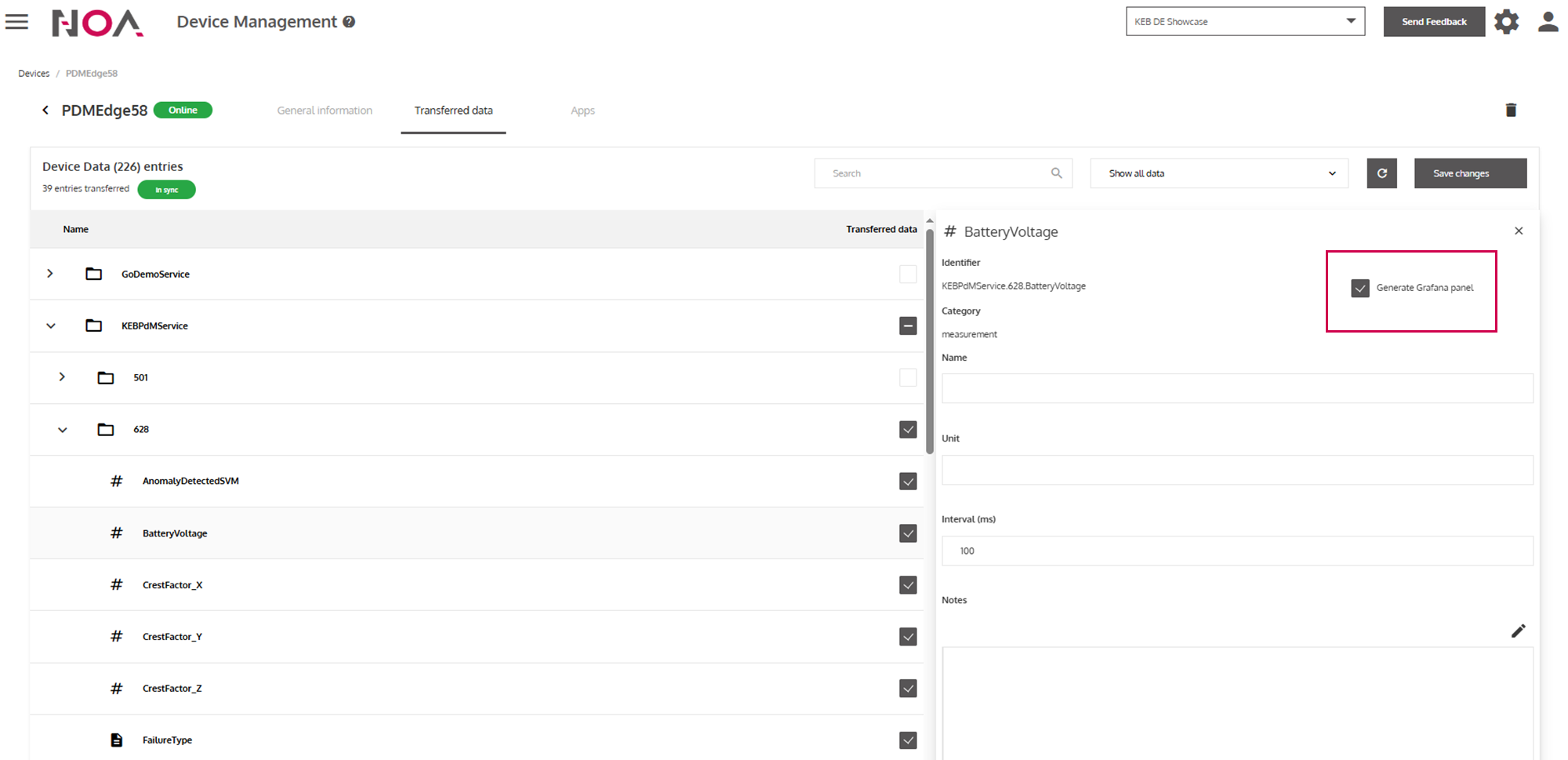
It is recommended to check the box Generate Grafana panel before you save your
data selection. This way, a Grafana panel visualizing your data is automatically
created and you do not have to manually write SQL Queries in Data Analytics.
These Grafana panels are used in the App Builder to build Dashboards for
visualizing machine data. Open this detail view of data by clicking on the data row.