Apps
About
In the Apps tab, you are able to access the Fleet Management feature of NOA
Portal. You are able to deploy and manage Apps of your Devices in NOA Portal.
This is also where you can deploy your Custom Apps after creating them in
the App Catalog.
Anatomy
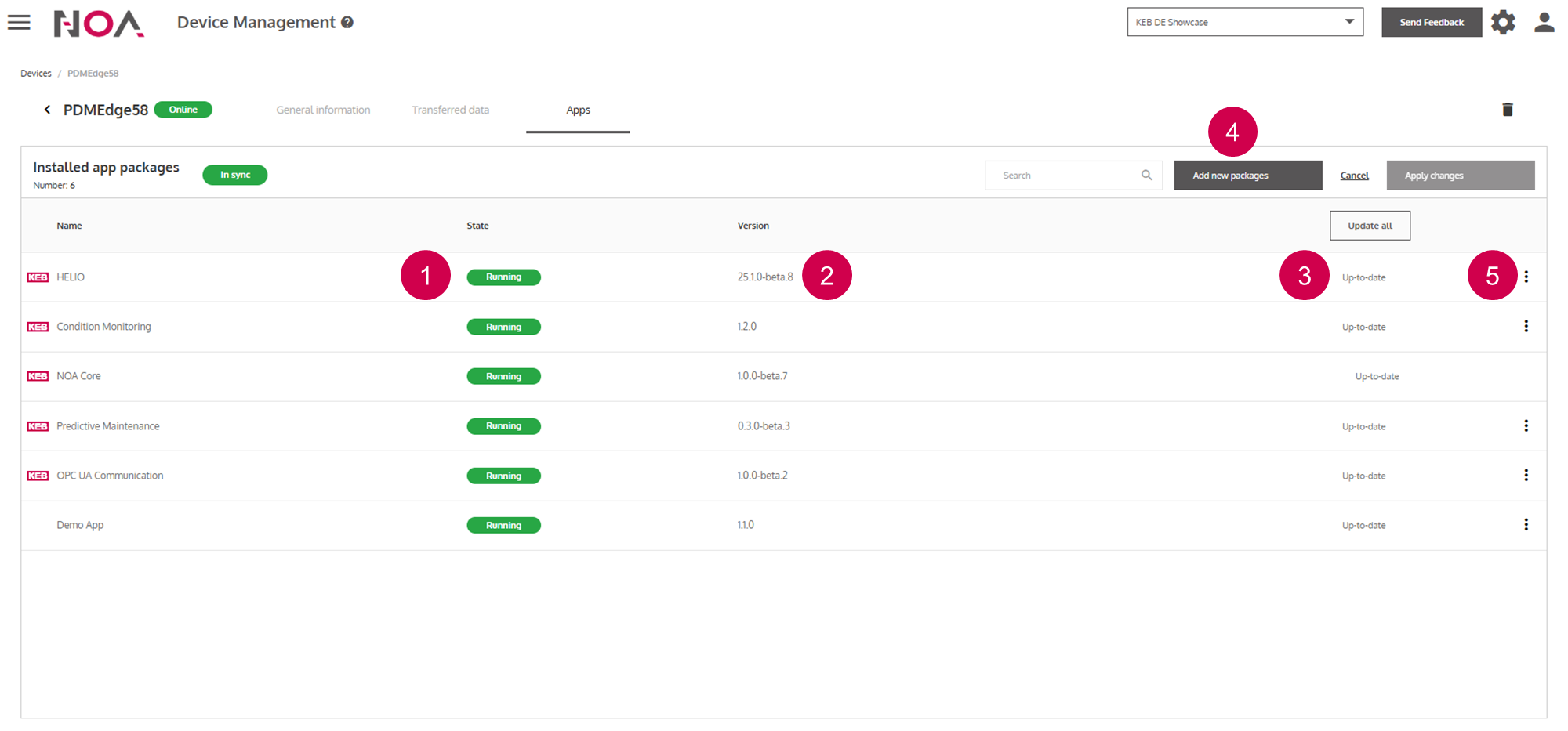
App Package State(see below)View release notes of the update
Update the
AppAdd new
AppDelete
App
App Package State
| State | Explanation |
|---|---|
| The app is running as expected on the device. This is the default state of the app. | |
| The state of the app cannot be retrieved. There is no information provided by the app. |


Device App Package State
| State | Explanation |
|---|---|
| The apps in NOA Portal and in NOA Core of the device are synchronized. | |
| An update of the device is pending. After the update, the device should be In sync again. | |
| The configuration in NOA Portal and in NOA Core of the device is different and the system cannot find an automatic solution. | |
| The state of the device apps is unknown. This usually happens when the page loads and app states are retrieved. |


Add new App
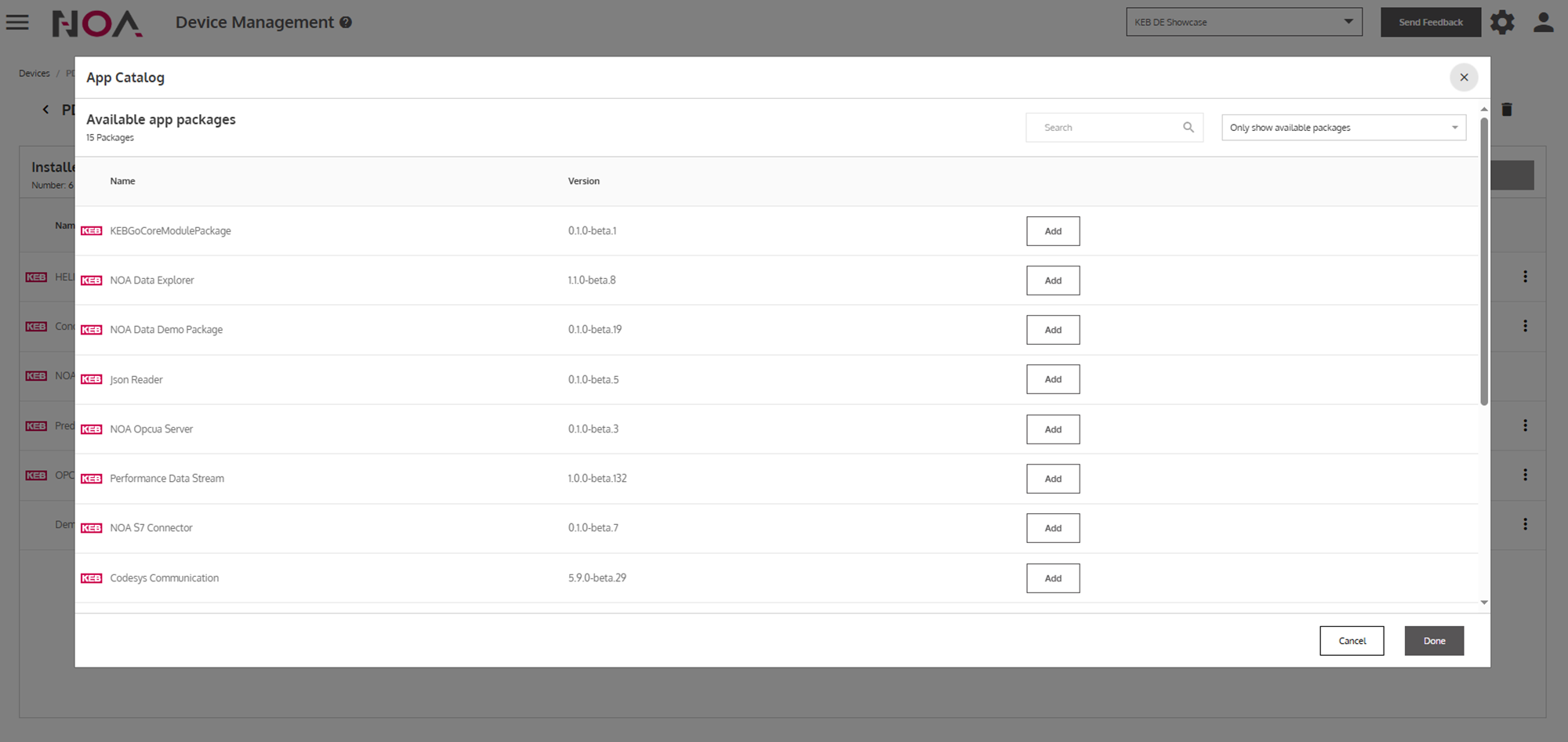
The list of Apps that you get displayed are the Apps that are available
to your Device. These are KEB Apps (e.g. HELIO) and Custom Apps that are
present in your App Catalog. Note: depending on the architecture of your
Device (ARM vs. AMD) the list of available Apps changes. Add the required
App and confirm your choice with Done.