Whitelabel a Tenant
You can customize the design of your Tenant according to your Corporate Identity. Switch the NOA logo to your company logo,
change the Background Image and adjust the color of elements.
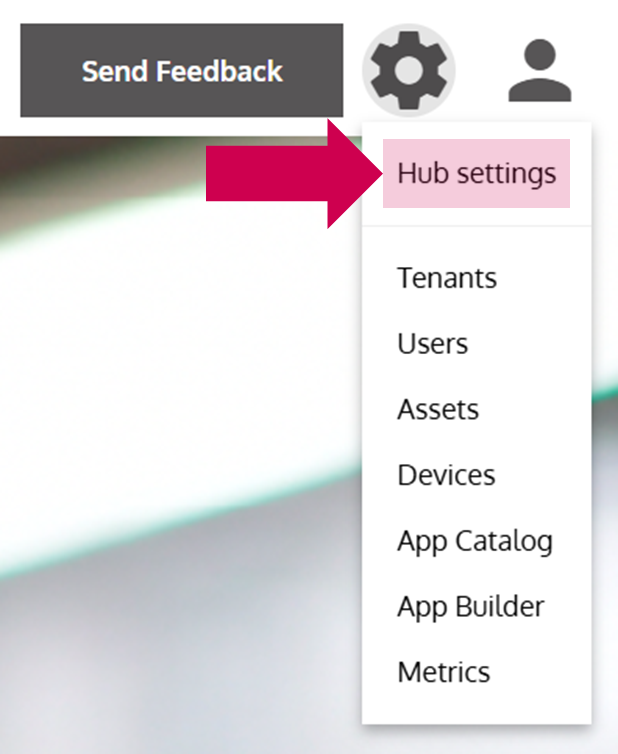
- Open the Hub Settings
… via the Options Menu.
- Change the colors
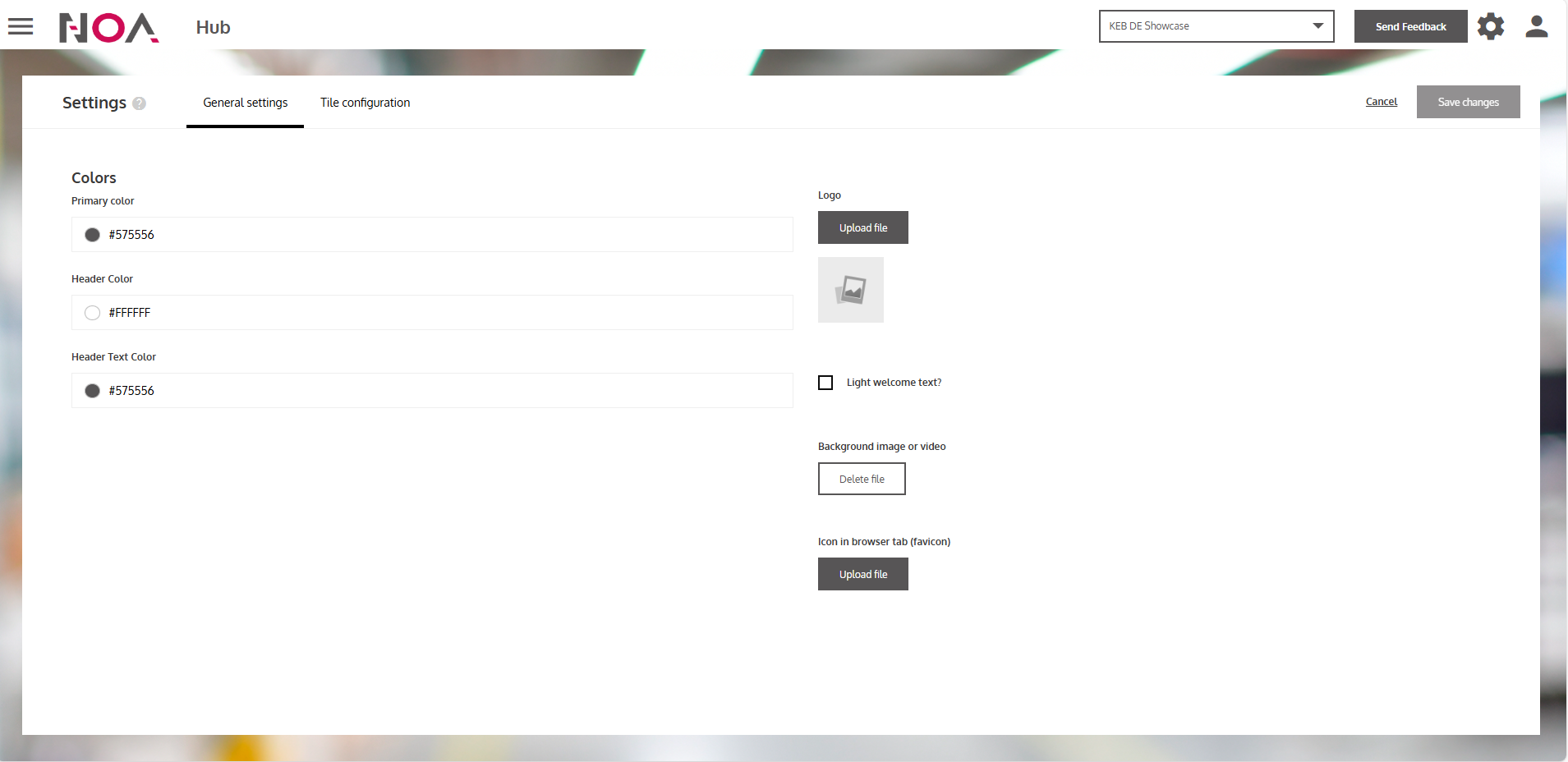
… of elements within NOA Portal by choosing a color code in the Primary Color, Header Color or Header Text Color selectors on the left side.
- Change the NOA logo in the Header
… by clicking on Upload file below Logo on the right side.
- Change the background image
… by clicking on Upload file / Delete file below Background image or video on the right side. If a Background image or video is already set,
then this button displays Delete file, because you would overwrite the old image / video.
- Change the icon in the browser tab (favicon)
… by clicking on Upload file below Icon in browser tab to customize your Tenant even further.
Your Tenant design is now aligned with your Corporate Identity.