Create a custom App
You are able to upload your own Apps using Docker files and deploy them on your Devices via NOA Portal.
This documentation assumes that you know how to create a Docker file. Please refer to other resources
(e.g. Docker Docs) when you want to learn more about that.
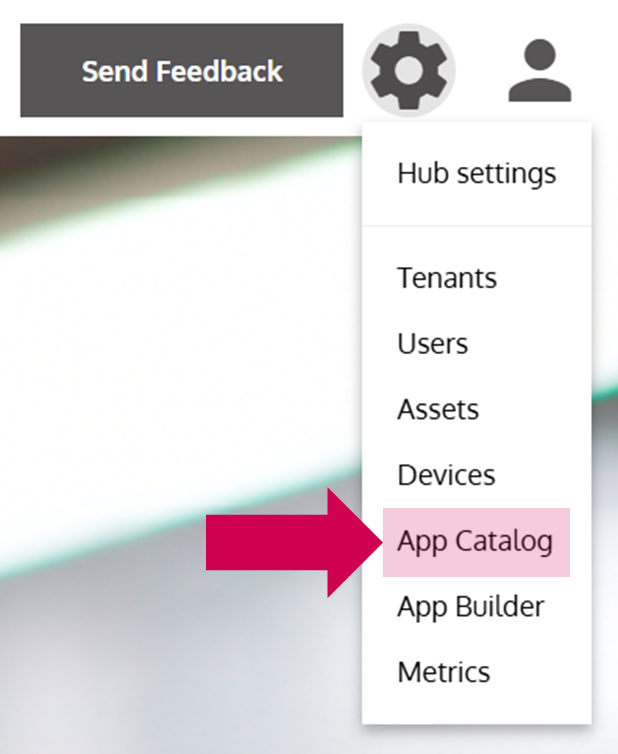
- Open the App Catalog
- Switch to Services
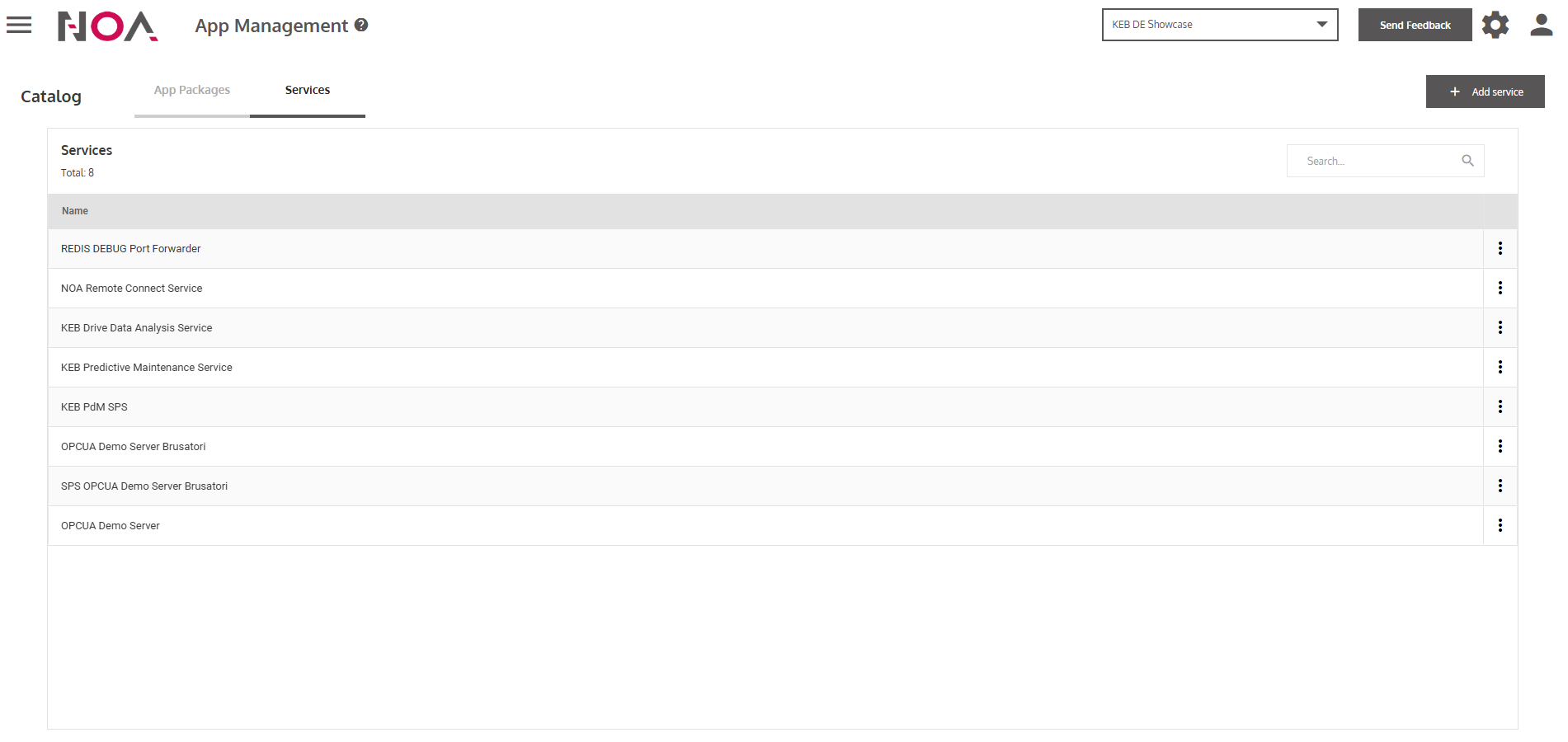
- Click on Add service
… to add a new Service.
- Upload the docker images of your App
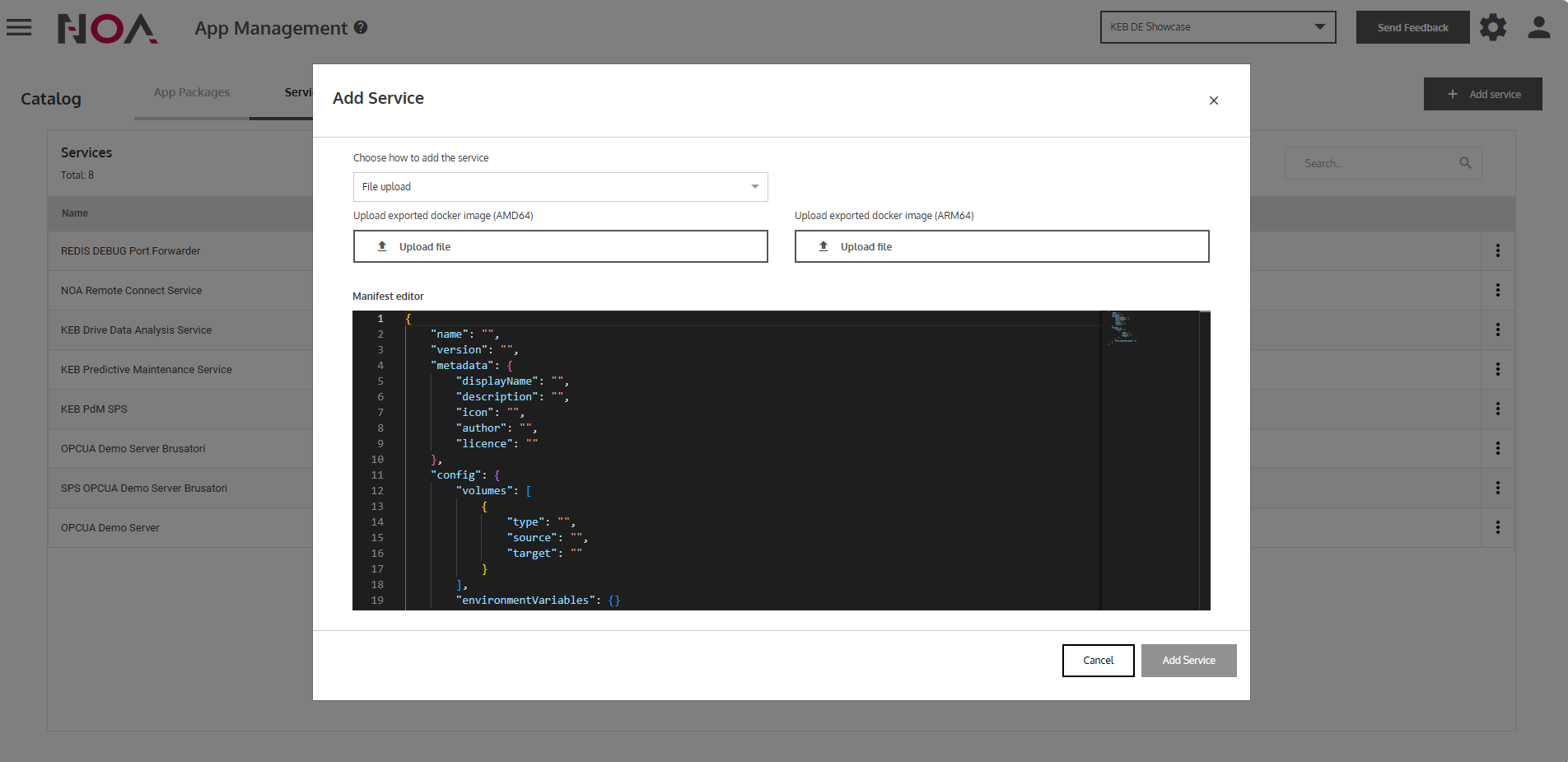
- Enter the Manifest of your Service
Check Service Details to get more insights and a template Manifest.
- Click on Add Service
… to upload your Service. Now, your Service appears in the Services table. After adding the Service, you need to add the App Package containing that Service.
- Switch to App Packages
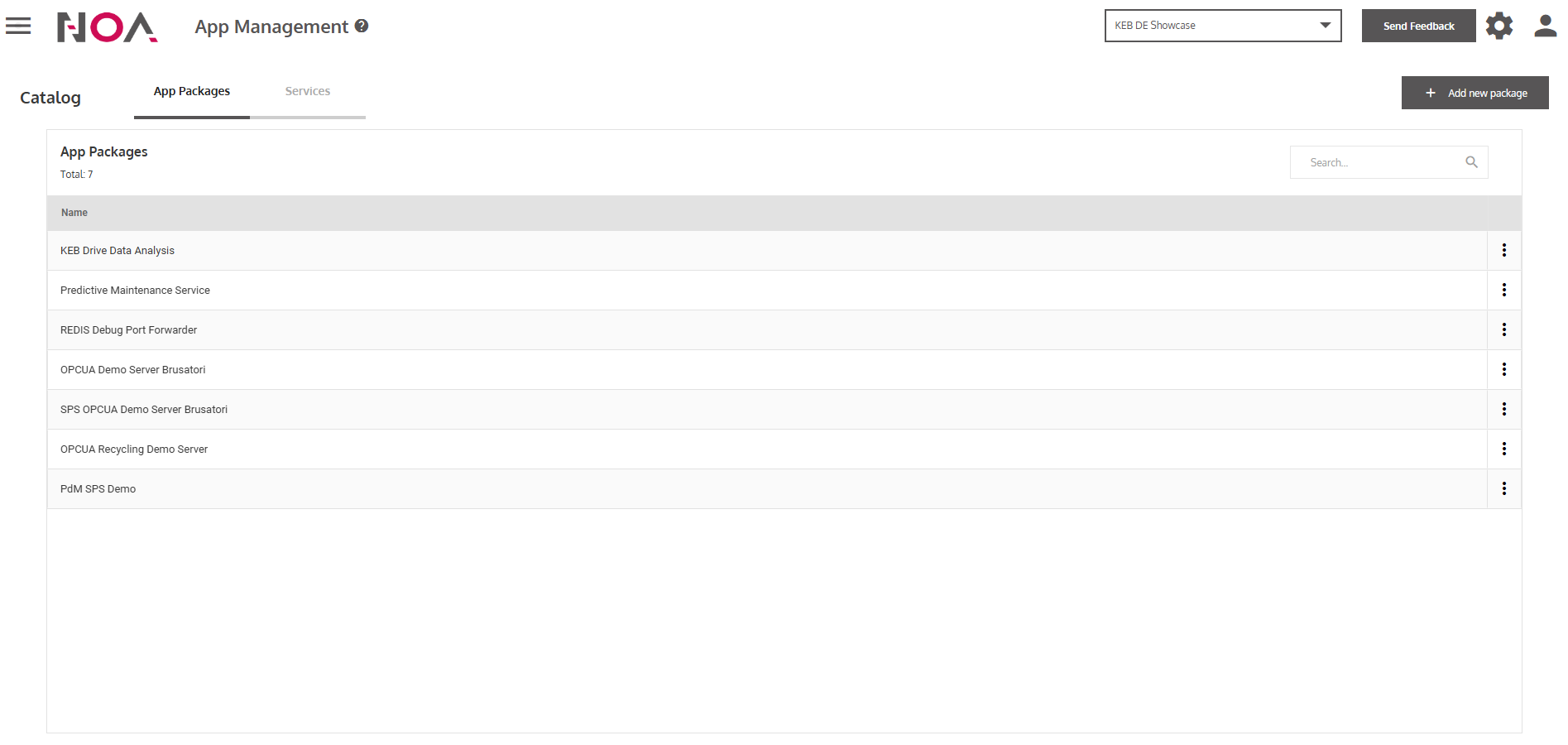
- Click on Add new package
… to add a new App.
- Enter the Manifest of your App
Check App Packages to get more insights and a template Manifest.
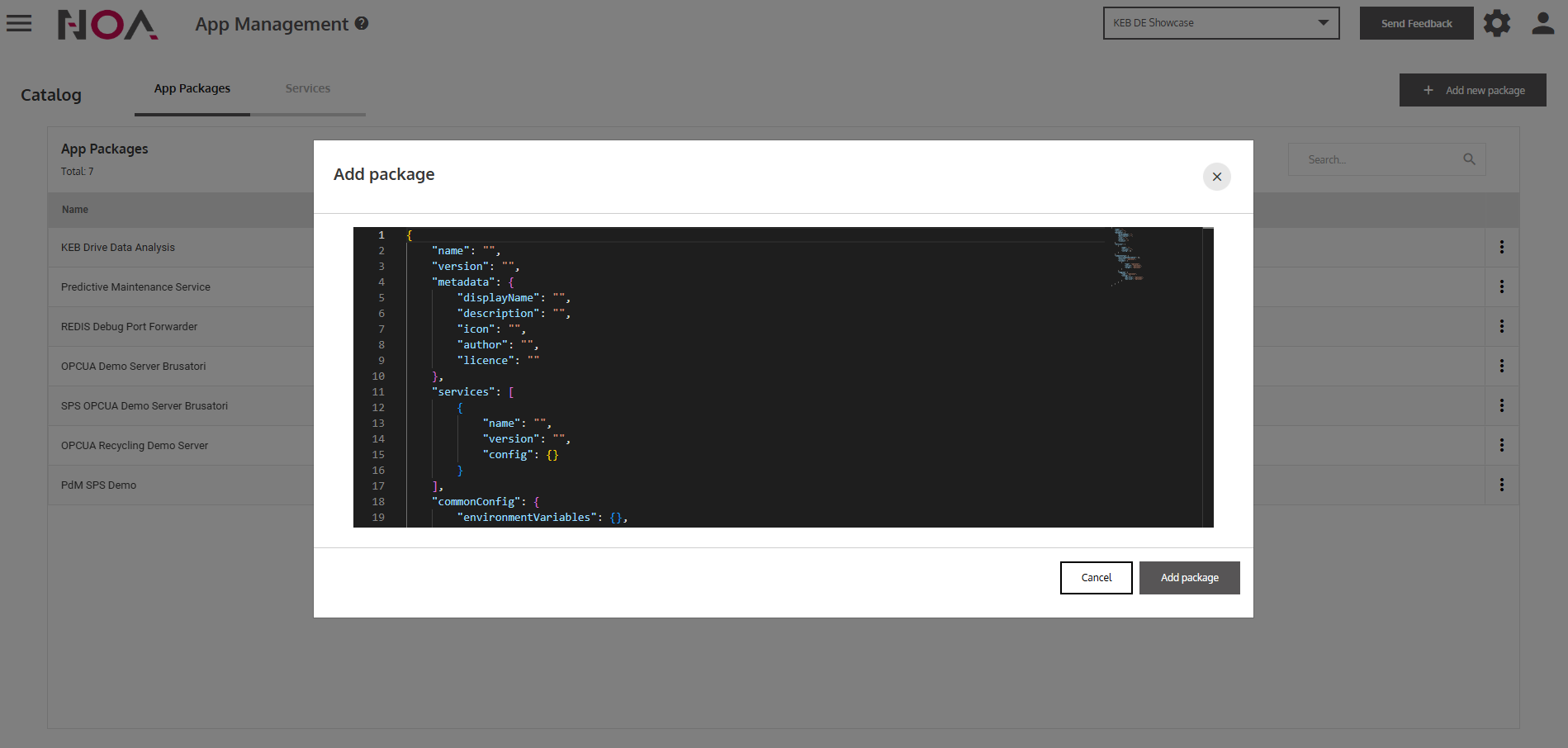
- Click on Add package
… to add the App to the App Catalog. Now, it appears in the App Packages table.
You have created an App. You can deploy this App (like every other App) on your Devices via the Device Management. See this guide (Install Apps) for more information about installing Apps on a Device.