C6X1 First Steps
Set Passwords
- Connect the panel (PoE: Power-over-Ethernet, no network access required)
- The panel boots into the X1 settings ("System Settings"), operate via touchscreen
Access withadmin/admin
Passwords foruserandadminmust be changed
⚠ Store passwords securely
⟲ Panel restart -- happens automatically
Configure Network
- During panel boot, tap the display until a blue bar appears (TAP-TAP): wait until the intermediate screen appears.
The IP address<ip>is shown at the bottom (DHCP, possibly an "autoip") - Change the IP address: In System Settings (
adminas above) under "Network"
⟲ Panel restart -- perform manually (e.g., in System Settings > Restart > Main OS)
Remote Access via Browser
➡ Enter http://<ip-adress of panels>:port in the address bar, see table below
⚠ Ensure that the PC and the panel are in the same network.
In the browser, accept the unsecured connection (http without s) to access the page.
📖 Link to complete C6X1 user manual keb-automation.com/products/c6x1/user-manual.pdf
X1 System Settings
Setup for networking and browser (Chromium)
Access: <ip> (no port), admin/admin
- Login Screen
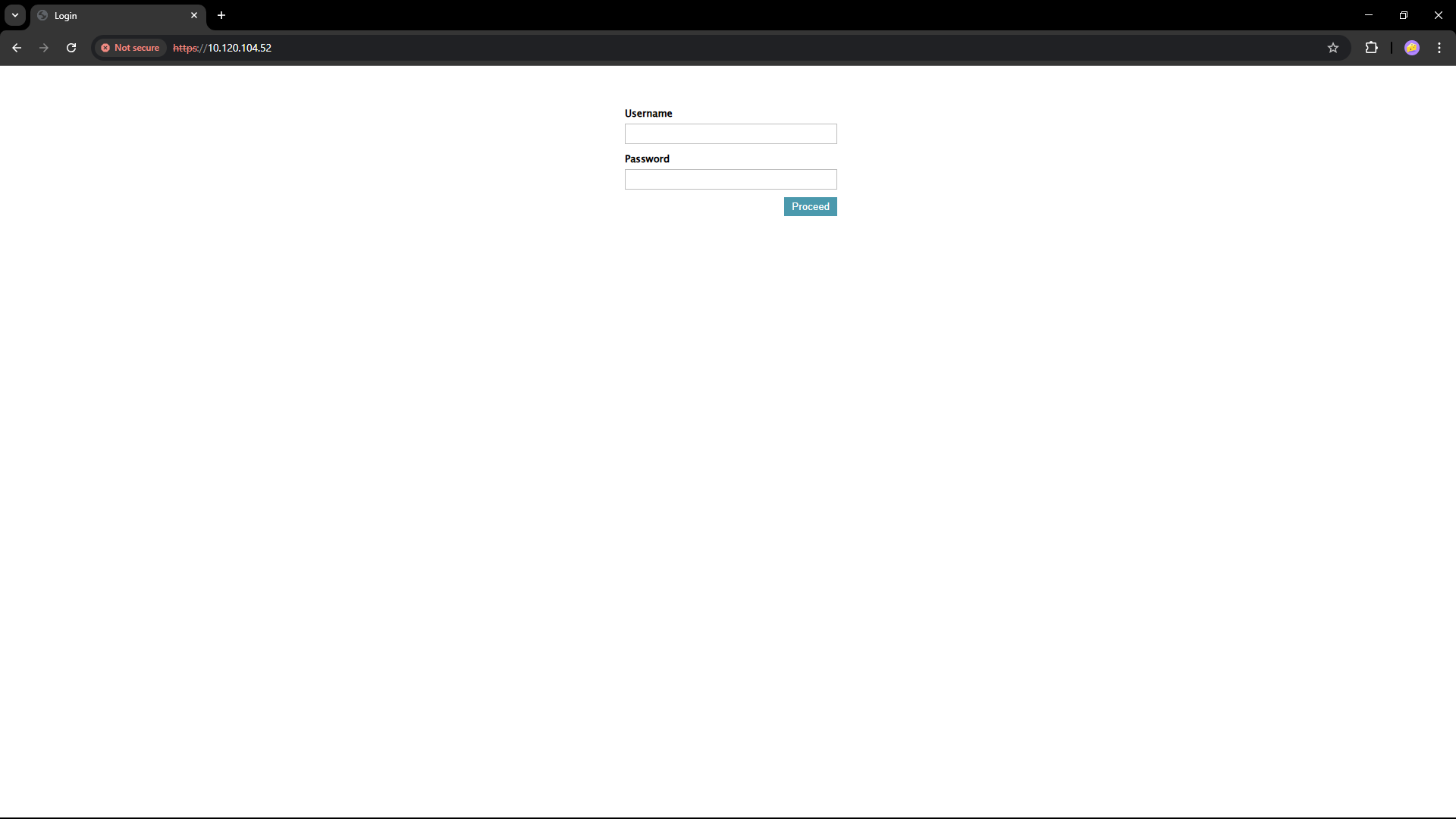
- Landing Page