User Management
Add new users or change existing users with the User Management.
⚠ Change the default user and password: service and kebadmin
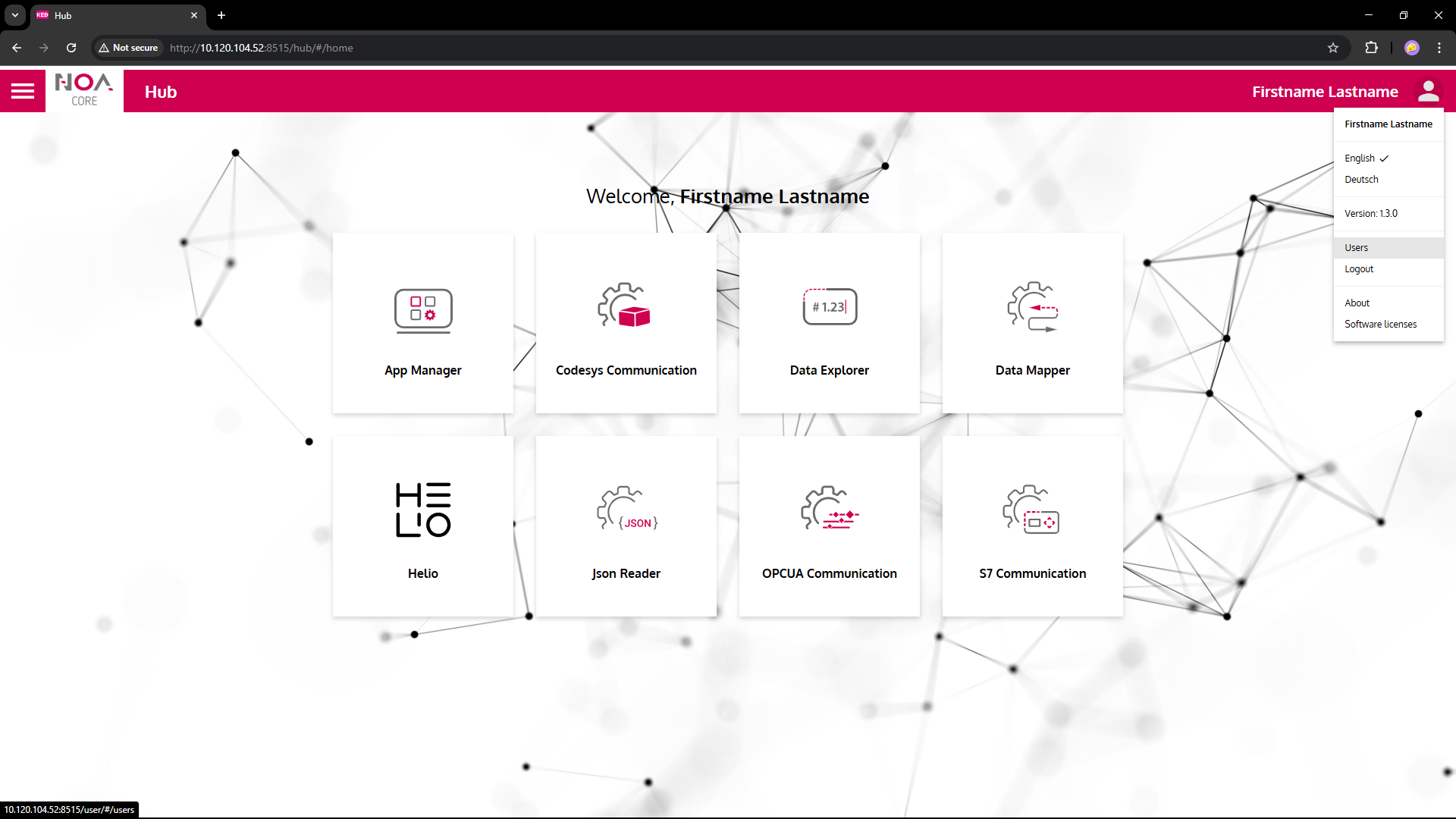
Access the user management via the "User" menu (upper right corner)
- Only users with role "Admin" can access the user management
- The "User" menu is available in all apps
Add a New User
- Click "Add User" button
Fill in the fields
Name: First and last name of the user; the name gets displayed in the upper right corner and on the Welcome Page Username: Choose a username for login Role: Select from "Admin" (full rights), "Service" (limited rights), "User" (only read rights, may not have access to all apps) Password: Choose a password; this must be at least 8 characters long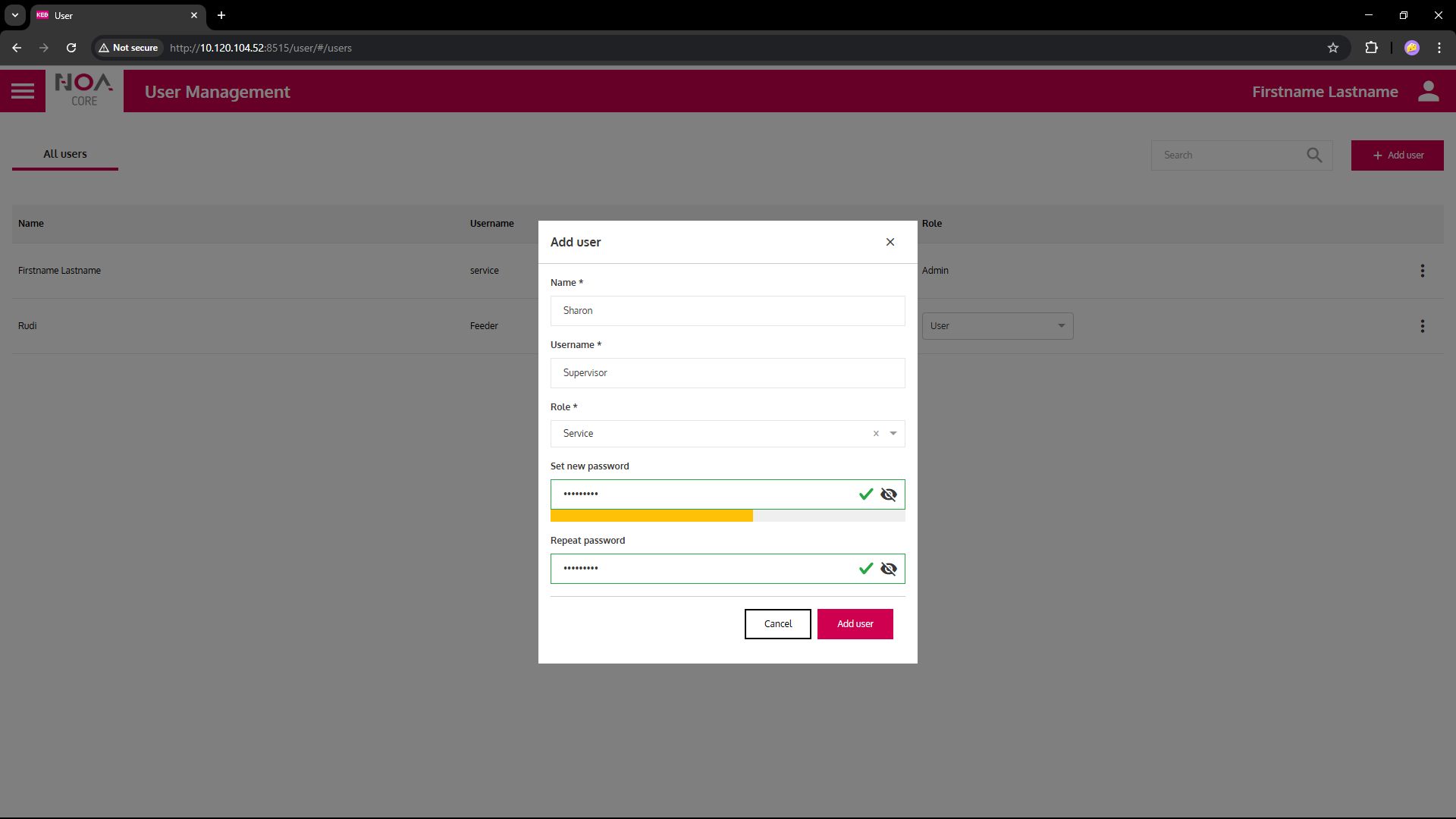
- Click on "Add User": The new user appears in the list "All Users"
- (Optional) You can always change the user's role in this list
Change Your Password
You can only change your own password, not for any other user.
- For your own user: Choose "Edit" from the three-dot menu on the right of the row.
- In the next page, you may change
Name: Edit your display name; your user name cannot be changed!
Password: Enter a new password
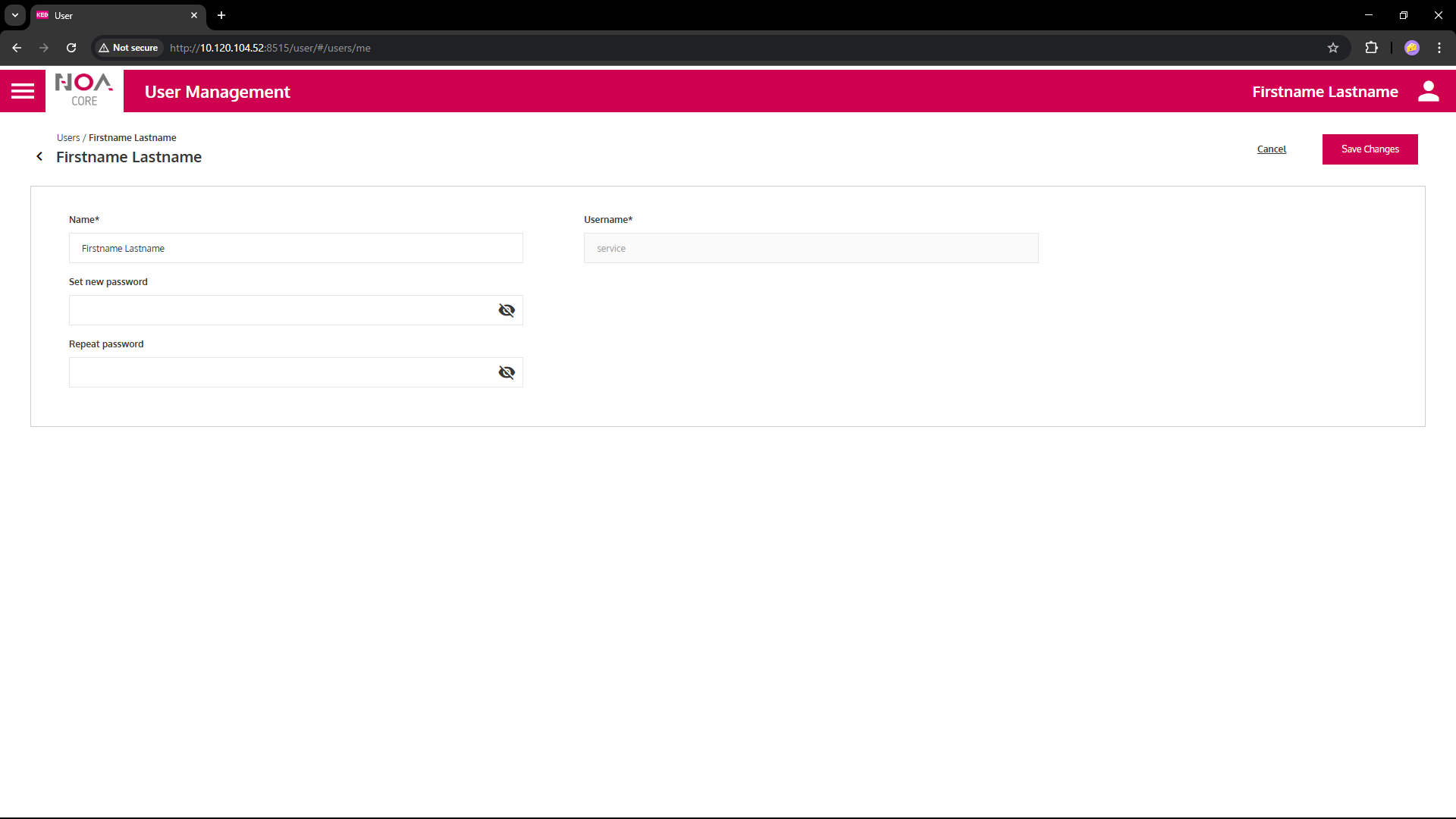
- Save the changes
Delete a User
You cannot delete yourself from the list.
Choose "Delete User" from the three-dot menu on the right of a row. After confirming the dialog the user is deleted and disappears from the list "All Users".