Codesys Communication
The Codesys Communication establishes a connection to a controller running Codesys Control
- KEB Controllers include C6 Compact 3, C6 Smart, or C6 E22
- Third party controllers, e.g. Eaton XV-303
Configure the parameters as below.
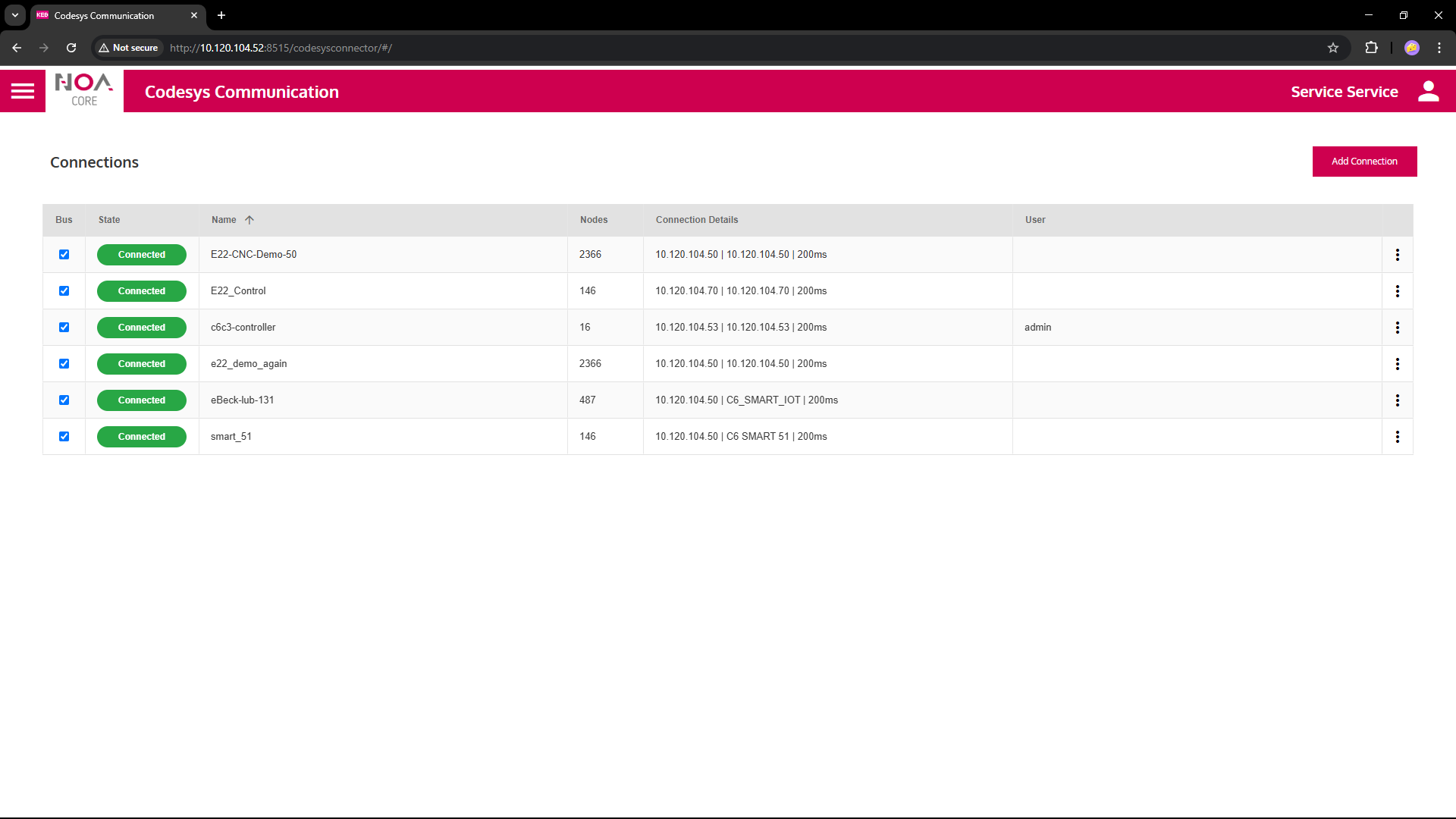
Upon success the service
- Shows the device's Codesys name big on top
- Shows "Connected" in the green pill right next to it (this pill shows the connection status in general)
- Starts reading the data tree immediately
Prerequisites
To establish a Codesys Communication the following must be available in the local network
- Codesys Gateway that can access the target device -- frequently on the target device itself
- Target Device (controller) with Codesys Control real-time engine
- A running PLC Program on the target device
- Data defined in a Symbol Configuration and at least one symbol set with read and/or write access
These are the same prerequisites for accessing the target device from COMBIVIS studio 6 where you can program the controller, download and run a PLC program.
➡ For details see Set up C6C3 for Control
Parameters
| Variable | Data Type | Description |
|---|---|---|
| General | ||
| Name | Descriptive Name for each connection | This name will be used as root node for this connection e.g. in Data Explorer and HELIO NOA Connection |
| Sampling Rate | How often data is expected from this connection | This is a hint to the communication app; it is up to the app if it can fulfil this sampling rate. The communication will send data at it's own discretion. |
| Device Connection | ||
| Gateway | IP address | IP address of the Codesys Gateway that provides access to the Codesys Control |
| Address Type | Drop-down | Either "IP Address" or "Name" (Codesys name) |
| Address | IP address | IP address of target device (may be localhost or 127.0.0.1 if the gateway runs on the same device) |
| Name | String | Codesys name of target device (copy from COMBIVIS); some devices only connect using the name, e.g. KEB C6 Smart, Eaton XV-303 |
| Secure Connection | Authentication | These variables have no effect if Codesys runs without authentication |
| Username | String | User name as used by Codesys Control, as set up in COMBIVIS |
| Password | String | Password as used by Codesys Control, will be masked after use i.e. set to *** |
| Output values | read-only | |
| Name | String | Codesys Name as returned on successful connection |
| Connected | Boolean | Reflects the state of the connection: TRUE iff the connection is completely established |
| Connection Status | String | Reflects the detailed state of the connection, shown in the pill on top of the screen ('Disconnecting', 'Connecting', 'Connected', 'Connection Failed', 'Timeout Error', 'Connect Error', 'Config Error', 'Unknown Error') |
Example Settings
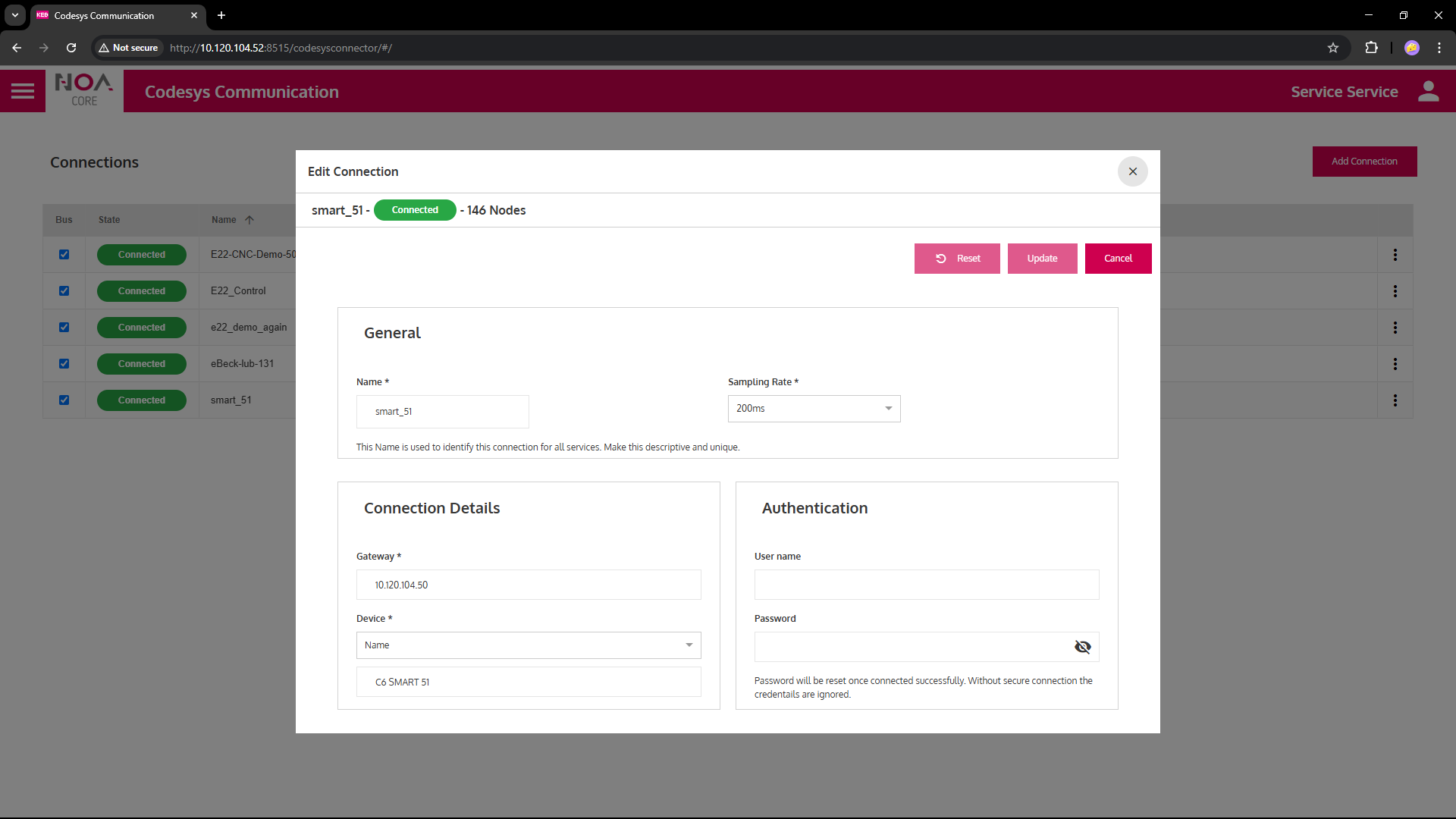
C6 Smart
Use Codesys Name for connection
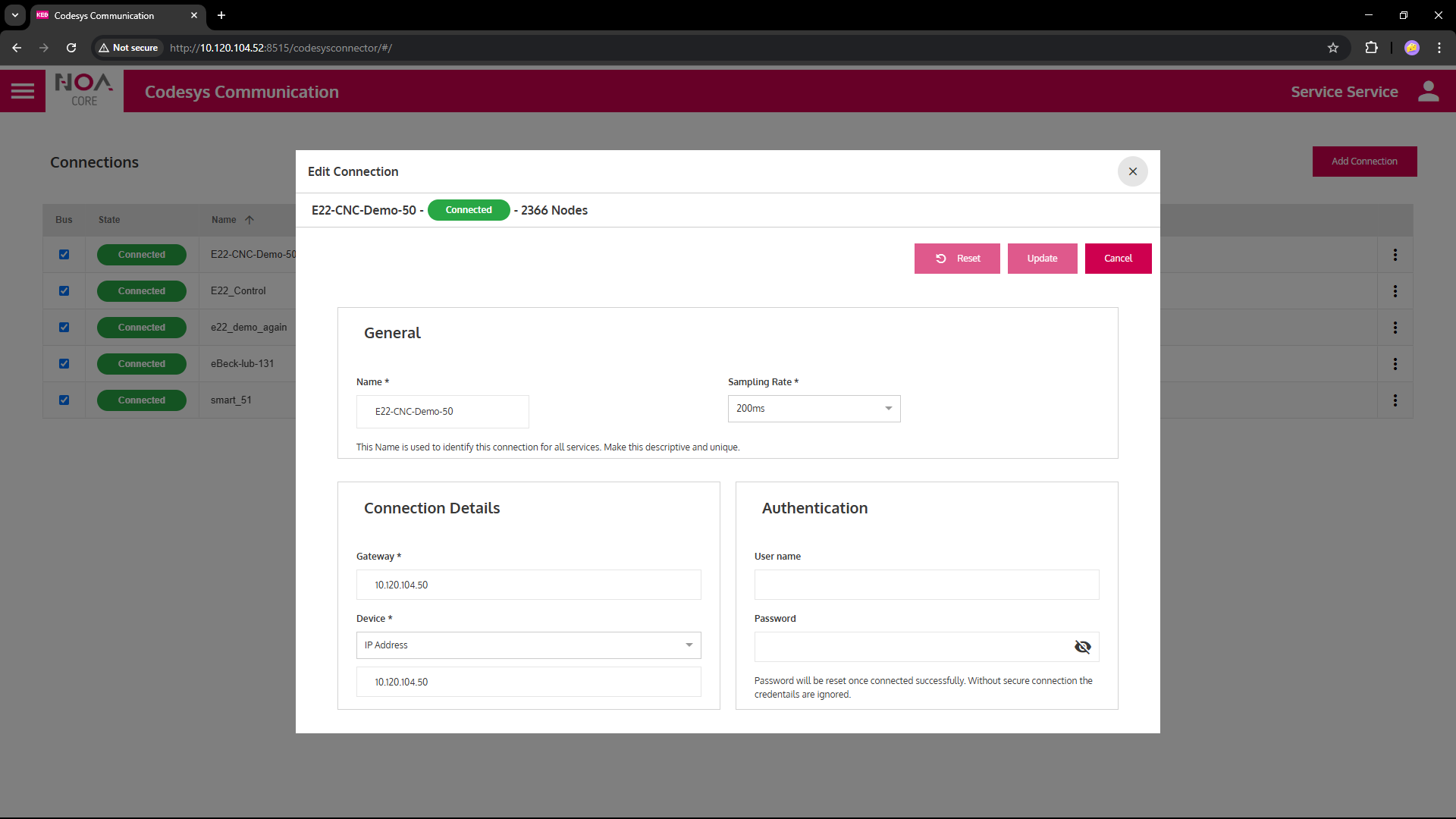
E22 LX
Use IP address for Gateway and Device
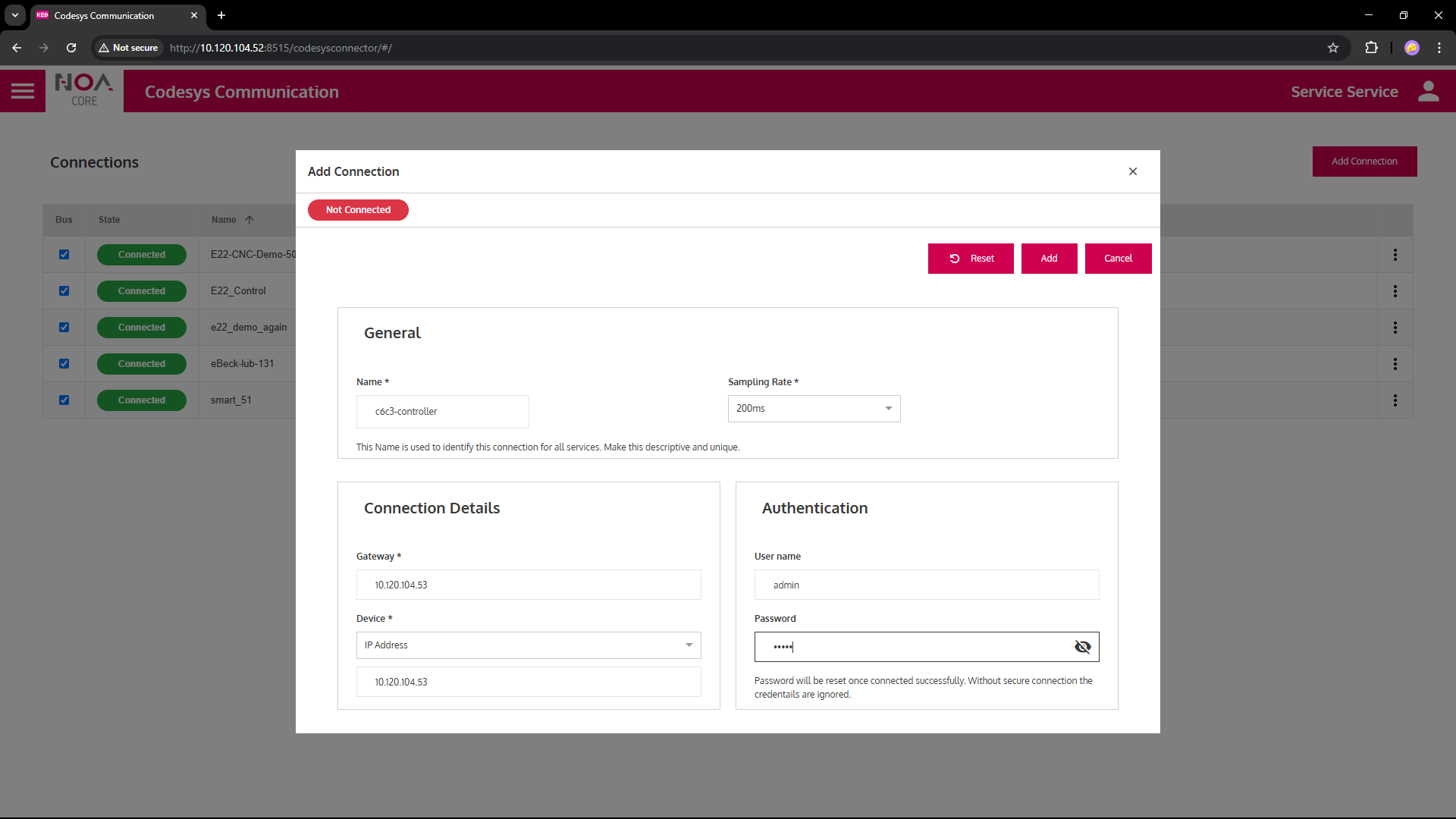
C6 Compact 3
Use of User name and Password is mandatory
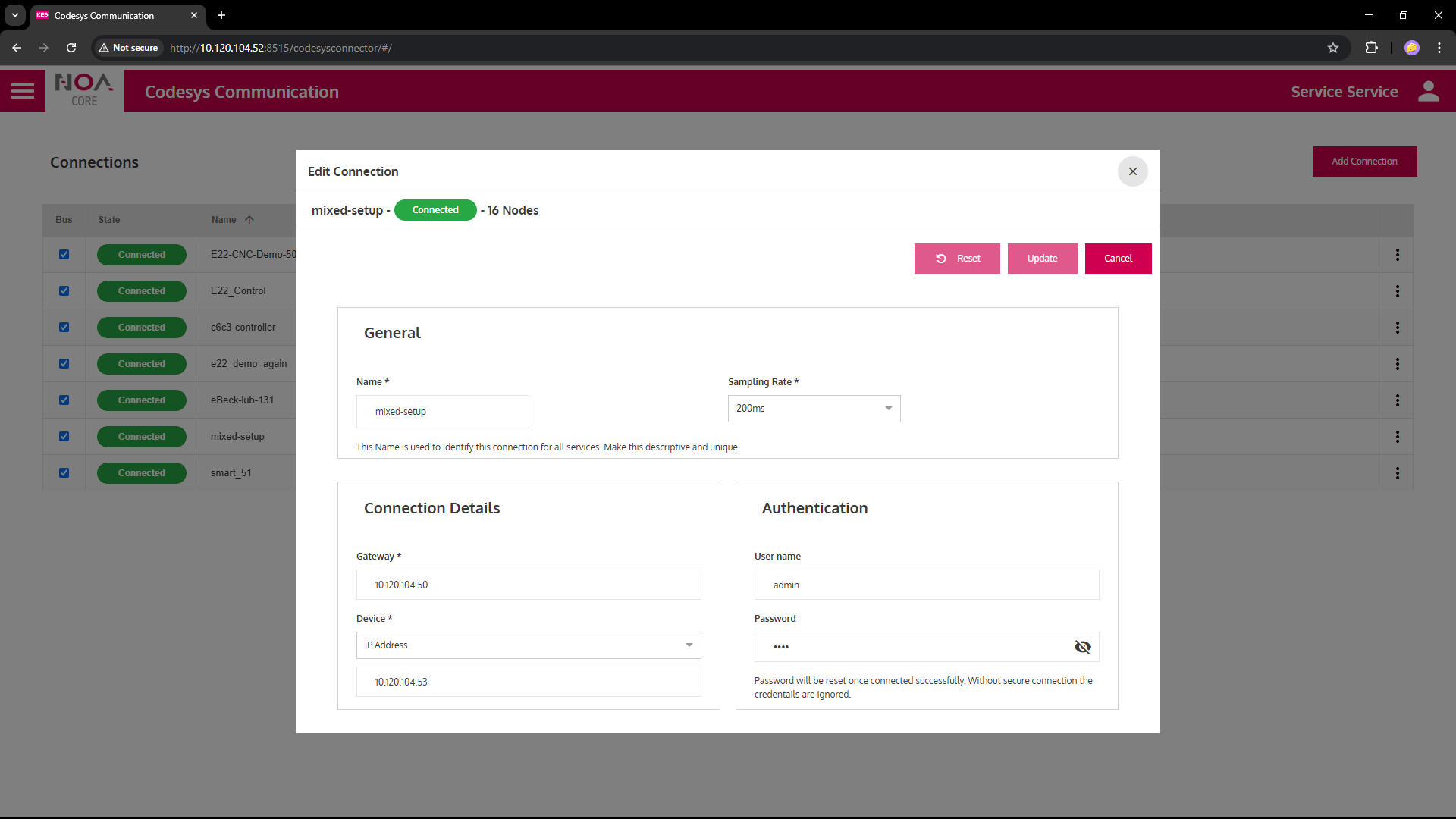
Mixed Setup
- NOA Device
10.120.104.52(C6X1 Panel, address bar) - Codesys Gateway
10.120.104.50(C6E22LX) - Target Device
10.120.104.53(Compact 3, user+password required)
Troubleshooting
Potential Codesys Errors
- Wrong credentials
- Make sure you use the same credentials as set for Codesys e.g. in COMBIVIS studio 6
- If you put in a wrong Codesys password the service will try to connect to Codesys Control anyway.
- After some attempts Codesys will block access even if the password is correctly: "Too many trials"
- Set the correct credentials (username and password)
- Wait for Codesys Control to accept new connections; restart Codesys Control or reboot the controller
- Communication is green, HELIO does not get data
- Refresh the "KEB Connection" in HELIO; Delete and re-create the "KEB Connection" in HELIO (it may be sufficient to change some settings and update the existing connection, e.g. change the udpate interval)
- Number of Connections
- Codesys allows only a certain number of active connections (default: 4)
- Close some active connections or increase their number in Codesys config