ADS Communication
The ADS Communication is a Python-based microservice designed for seamless integration within the KEB NOA IIoT Platform. It serves as a specialized connector that enables bidirectional data communication between Beckhoff PLCs and the NOA Platform. On one side, the service communicates with Beckhoff controllers via the Automation Device Specification (ADS) protocol; on the other, it interfaces with NOA Core through the NOAPythonDataExchange library — the Python implementation of NOA Protocol 2.0.
Key Capabilities
-
NOA-Compliant Integration
- Deployable as a standard NOA App, supporting NOA-wide configuration standards and runtime control mechanisms.
-
Protocol Bridging
- Translates data between the ADS protocol and the NOA Protocol 2.0, ensuring smooth data flow between the industrial layer and NOA Core layer.
-
Bidirectional Data Flow
- Read values from PLC symbols (cyclic or on-change).
- Write values to PLC symbols via NOA bus.
Supported Data Types
This version of the service supports the following data types:
BOOLINTUINTDINTUDINTWORD(treated as UINT)DWORD(treated as UDINT)REALLREALSTRING
Note:
STRUCTandARRAYtypes are not supported yet.
-
Dynamic Configuration
- Add or remove PLC connections at runtime.
- Discover available symbols and manage subscriptions through RESTful APIs.
-
Real-Time Data Acquisition
- Continuously polls subscribed symbols at the configured sampling interval and publishes updates to the NOA Core Bus (Redis) in the NOA-compliant format.
Prerequisites
Before using the ADS Connector service, ensure the following prerequisites are met:
1. NOA Core Environment
- A NOA device (e.g., industrial edge device) must be running with a properly configured NOA Core platform capable of hosting NOA-compliant services.
2. Beckhoff PLC Access
- A functional Beckhoff PLC must be available in your setup.
- The PLC must be reachable from the NOA device via TCP network communication (e.g., test by
ping).
3. PLC Communication Details
To configure the ADSConnector, you will need the following information about the target PLC:
-
PLC IP Address: The IP address of the Beckhoff PLC.
-
PLC NetID: The unique ADS identifier of the PLC.
How to Find the PLC NetID
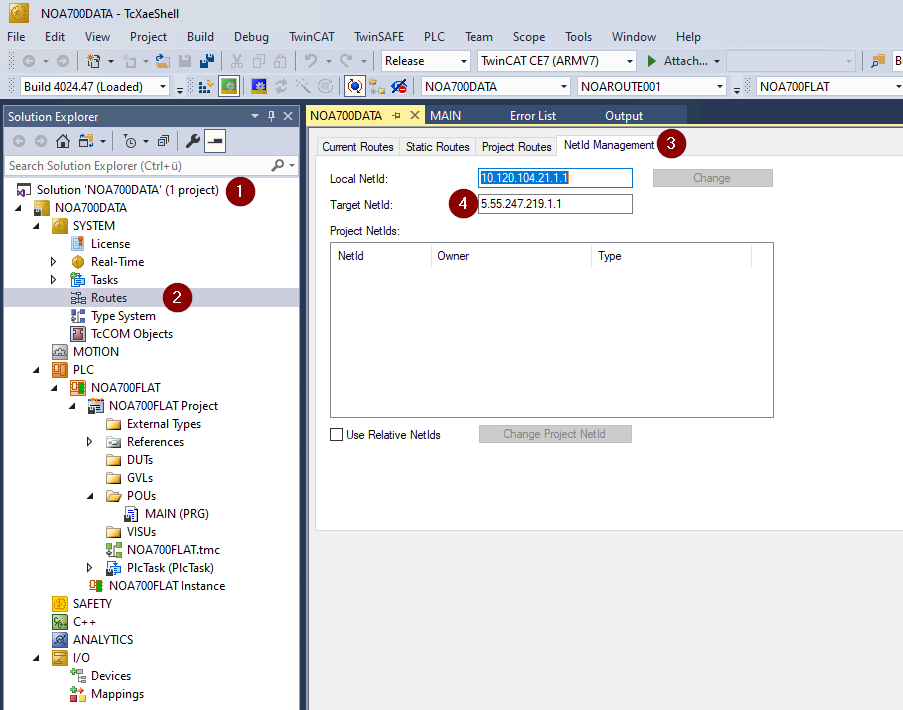
You can retrieve the NetID using the TwinCAT environment (see the image below):
- Open TwinCAT and load your control project.
- In the Solution Explorer, expand the 'SYSTEM' node and select 'Routes'.
- Navigate to the 'NetId Management' tab.
- Locate and copy the 'Target NetId' — this will be used as the 'PLC NetID' in your configuration.
With all prerequisites fulfilled, we are now ready to install the ADSConnector service on the NOA device.
Managing PLC Connections
This section describes how to add, edit, and remove PLC connections using the ADS Connector web interface.
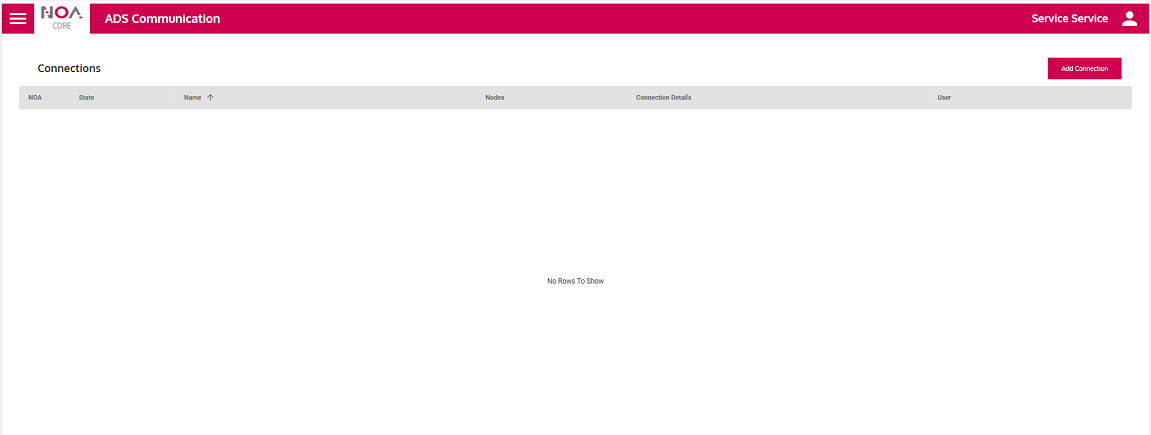
You can access the 'Connections' page by clicking the 'ADS Communication' tile in the NOA landing page.
The first time you open the page, you should see an empty list with no connections — like this:
➕ Adding a New PLC Connection
-
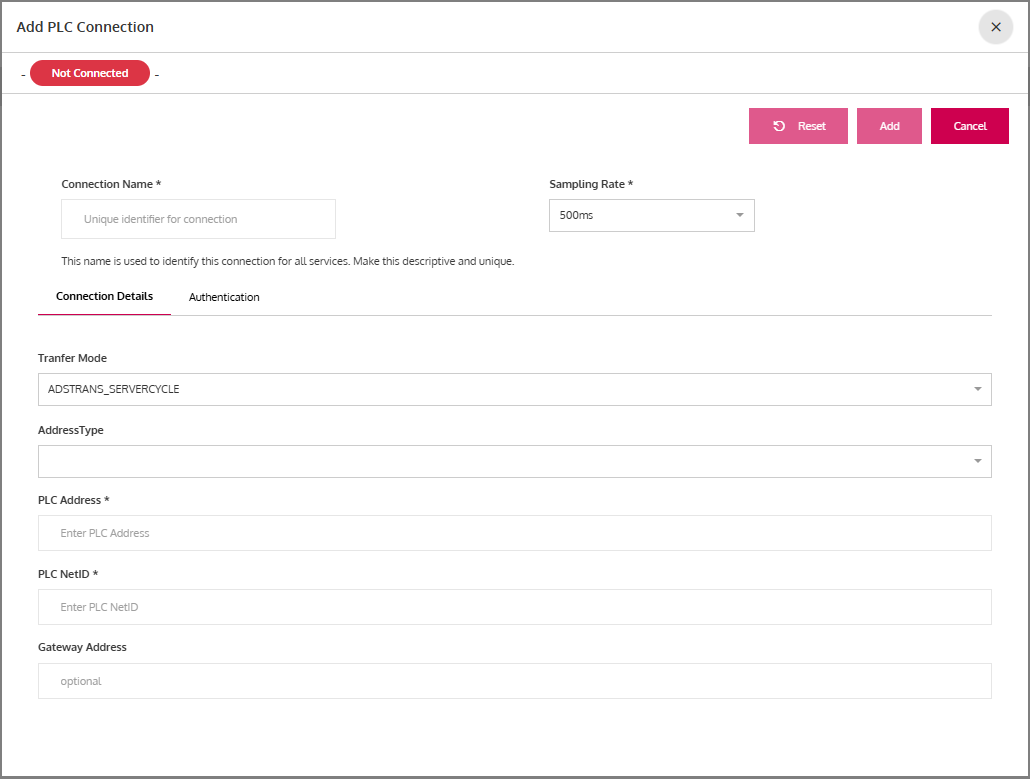
Click the 'Add Connection' button at the top-right corner of the 'Connections' page. The 'Add PLC Connection' dialog will appear.
-
Add the required configuration and authentication data as follows:
a) Connection Details Tab: Here you can fill in the required fields, or use the defaults ones if provided:
- Connection Name: A unique name for the connection (e.g.,
Line1_MainPLC), which will also be shown on the NOA datapoints for identification and filtering. - Sampling Rate: Select how often the PLC data should be polled (e.g.,
500ms). - Transfer Mode: Define how and when data is transmitted from the PLC to the NOA bus (default:
ADSTRANS_SERVERCYCLE). - Address Type: Select the addressing scheme (currently, only
IpAddressis supported and used as the default). - PLC Address: The IP address of the Beckhoff PLC.
- PLC NetID: The NetID copied from TwinCAT.
- Gateway Address (optional): Only required for routed PLCs (Not effective yet — reserved for future support).
b) Authentication Tab: If the PLC has authentication enabled (username and password required): Click the 'Authentication' tab and Enter the Username and Password used to access the PLC. If your PLC does not require authentication, leave this tab unchanged.
- Connection Name: A unique name for the connection (e.g.,
-
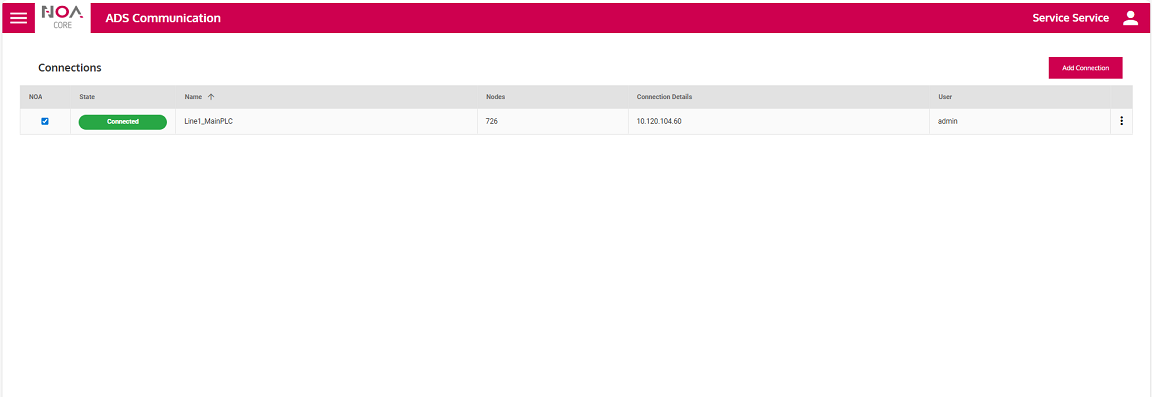
After completing both tabs (if needed), click 'Add' to create the connection. The new connection will now appear in the list with its current state (e.g., Not Connected, Connected, etc.).
Now you should see the created connection in the connection list.
If it is successfully connected to the PLC and the NOA bus, you will see a green 'Connected' status and a checked checkbox, respectively, indicating active communication with each system, as shown in the example below.
🔔 Note: The active connection is now registered in NOA and available for symbol discovery,
but it will not push PLC data until a NOA consumer service subscribes to one or more of the available symbols.
Update an Existing PLC Connection
To modify an existing PLC connection:
- Locate the desired connection in the list.
- To open the edit dialog, either click directly on the connection row or use the three-dot menu (⋮) of that row and select 'Edit'.
- The 'Edit PLC Connection' form will open, pre-filled with the current values.
- Update the fields as needed and click 'Update' to apply your changes.
Changes take effect immediately. The connection may briefly restart during updates.
Remove a PLC Connection
To delete a connection:
-
Click the three-dot menu (⋮) for the desired connection.
-
Select 'Delete'.
-
A confirmation dialog will appear:

-
Click 'Remove Connection' to permanently delete it, or 'Cancel' to abort.
⚠️ Deleting a connection will stop all data transfer from the associated PLC and remove its connection information from both runtime memory and disk. This action is irreversible.
After Connection(s) Setup
- The connection list will refresh automatically.
- You can manage multiple PLCs from this interface.
- Each connection shows live state and symbol/node count once connected.
Verifying Data Collection by NOA Data Explorer
Data Explorer is a built-in NOA tool for exploring live data from publisher service connected to the NOA bus.
It automatically handles subscription and unsubscription as you scroll through the symbol tree.
This makes it a convenient way to verify that the ADS Connector is successfully publishing subscribed data to the NOA ecosystem.
To verify that data is being served by the ADSConnector:
-
Open the Data Explorer app from the NOA landing page.
-
You should see the connection (e.g.,
Line1_MainPLC) listed in the NOA connection panel.
If it's not visible, click the 'Refresh data' button. -
Expand the tree under the
Line1_MainPLCnode to navigate to the target symbols (leafs). -
As you browse through the tree, you should see live data values updating for the selected nodes.
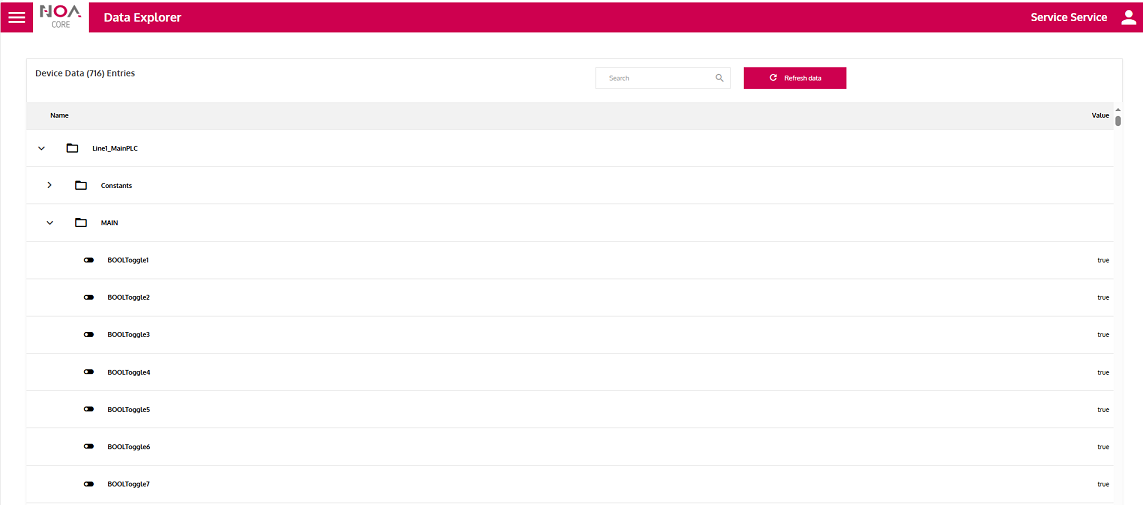
This confirms that the connection is not only established but also serving real-time data over the NOA bus.