Data Explorer
Observe and set all data available on the NOA bus.
The Data Explorer first performs a "Refresh Data" to get all the available data (variables) from the NOA Bus.
- Wait until this data discovery process has finished
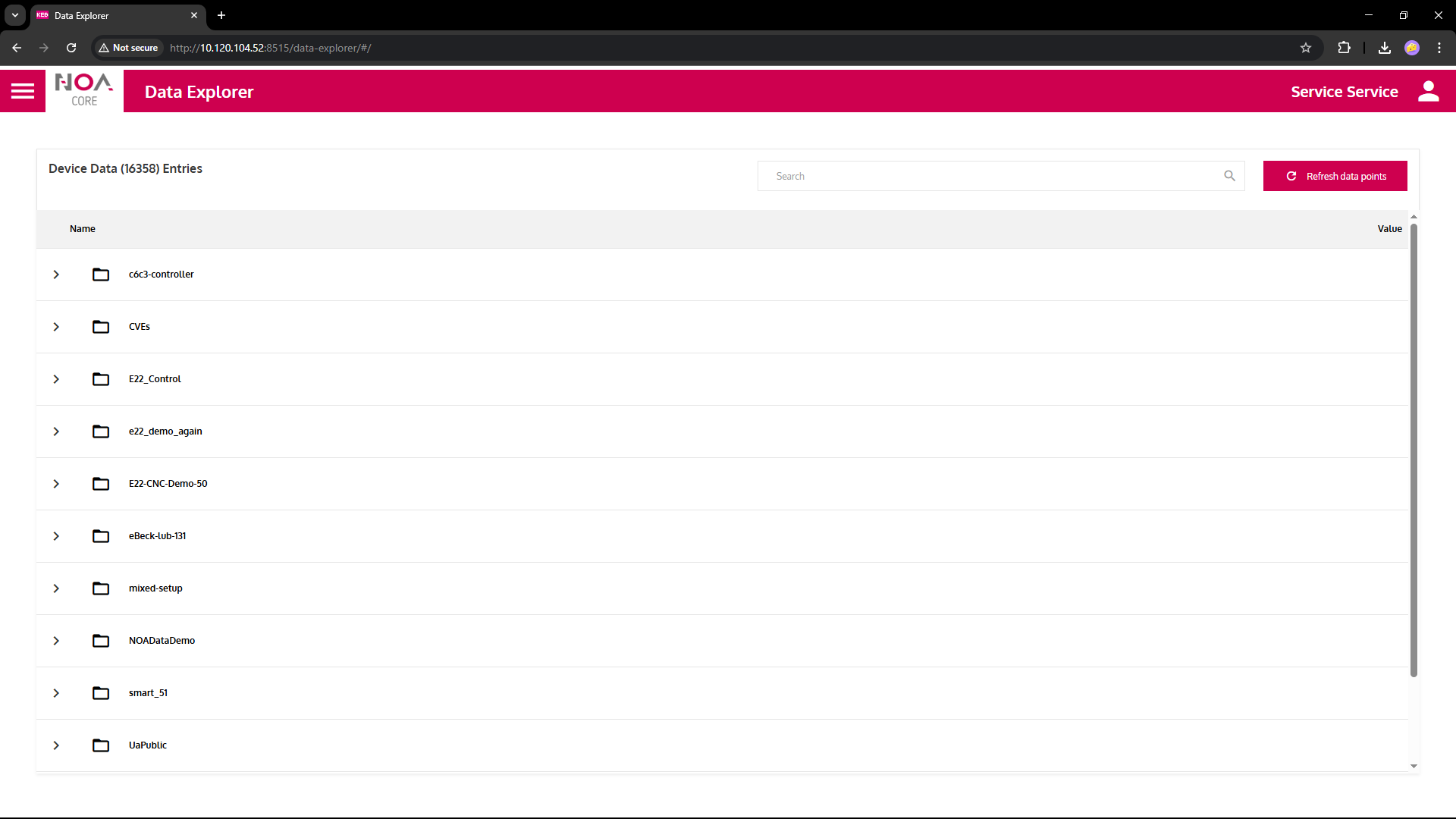
The data will be grouped into a data tree
- Folders represent the structure of the data e.g. Arrays or Structs
- Leaves denote actual variables that hold some value from the PLC
⚠ On any change of the available data: Press "Referesh Data" to start data discovery again and update the data tree.
Data Tree
Shows all available data sources. The name of the root node is the one given during configuration of the communication app.
Live Values
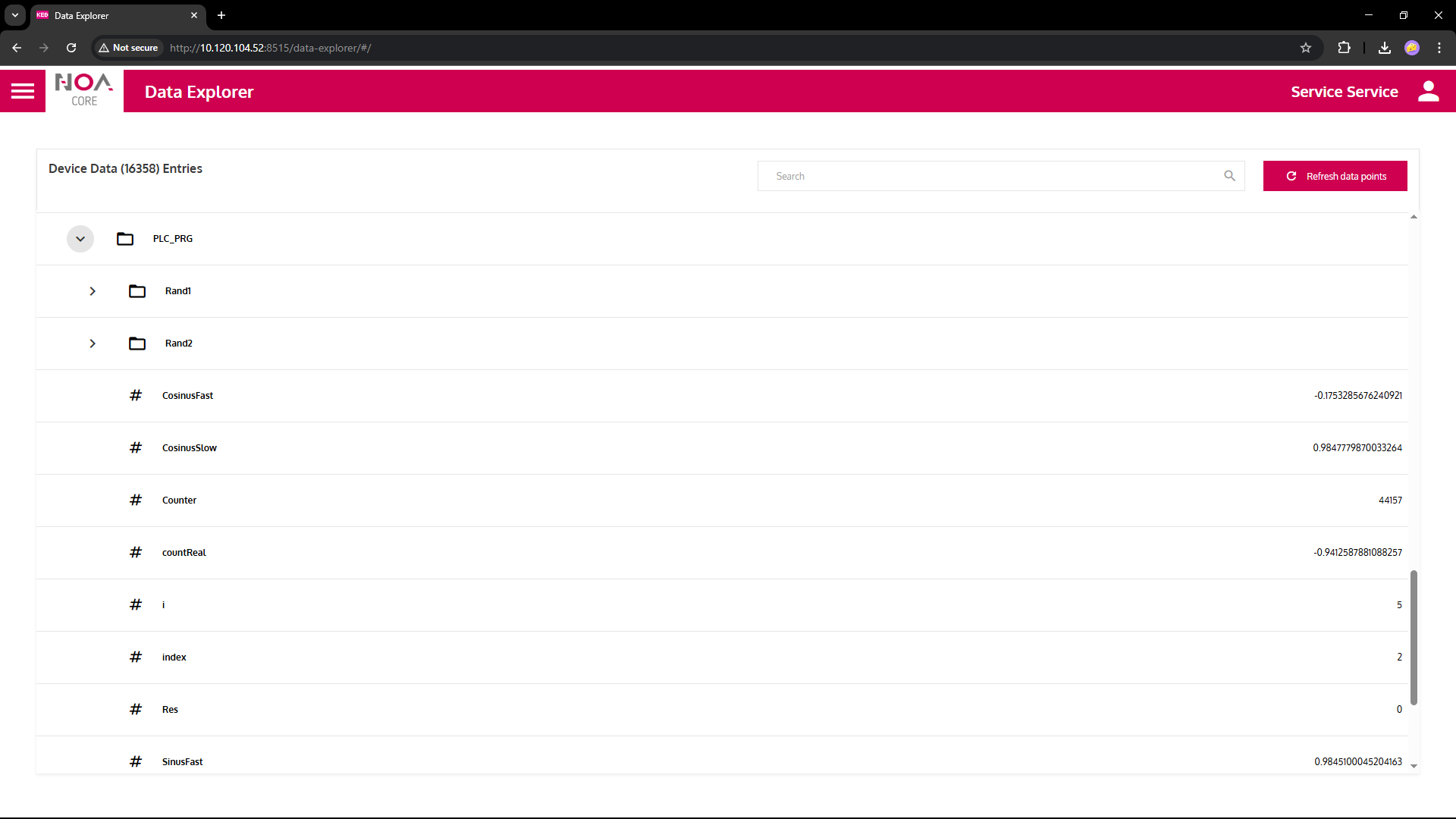
All the variables (leaves) show live data when it changes in the PLC.
Variable Details
Click on a row in the data tree
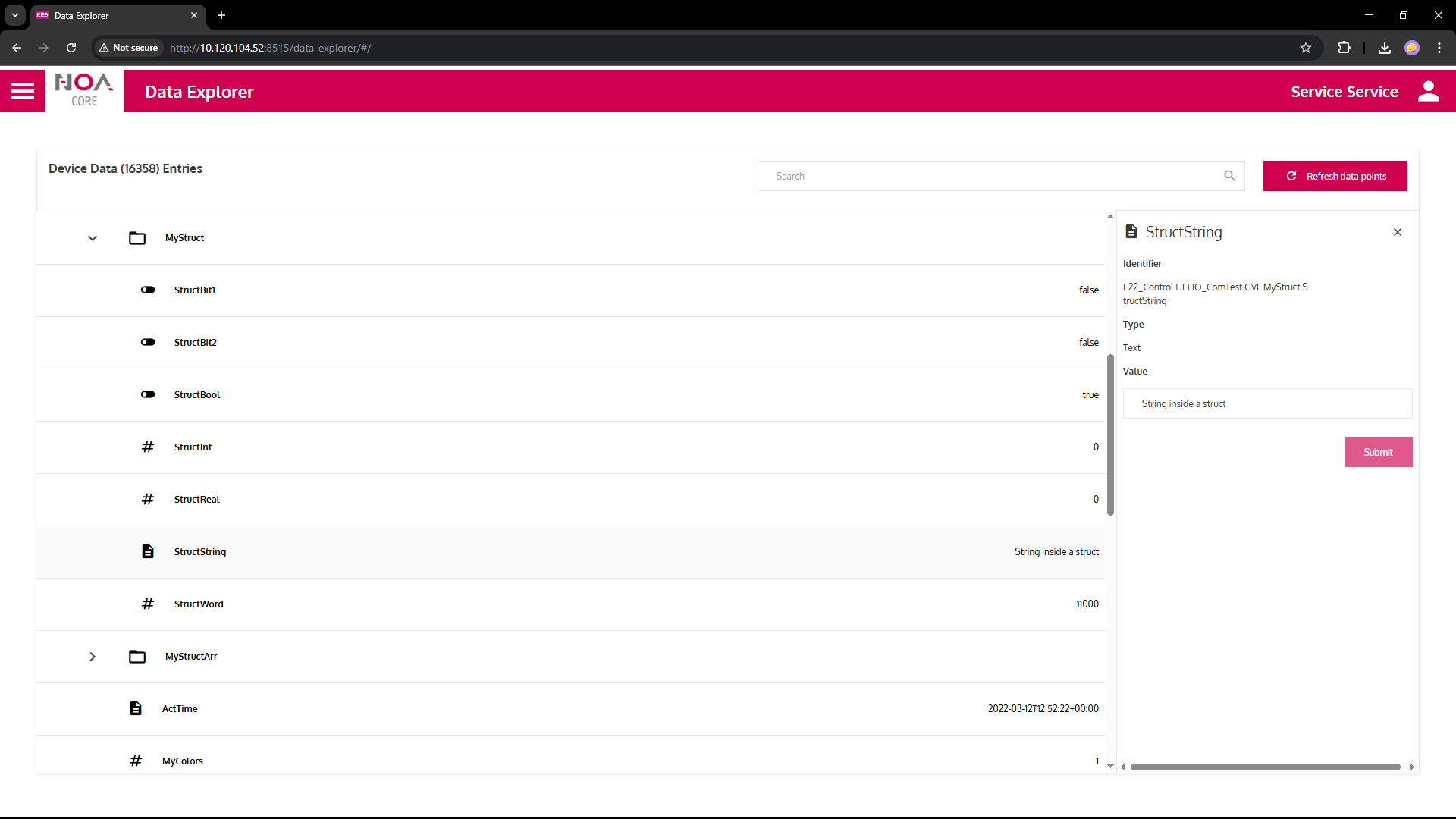
You see the following information
- The name of the variable big on top; the icon represents the data type
- Identifier: The unique identifier of this variable on the NOA Bus
- This information is used for the Data Mapper
- Type: The data type of this variable: Text (String), Number (integer, float), Boolean
- Value: The current value of the variable
- This value is "frozen" i.e. it does not update even when the variable changes
- Enter a new value and confirm with "Submit" to write it to the PLC (only possible for r/w variables)
Special Case: Methods
- Call methods from the details
- Enter eventual input values in the dialog
- Execure the method with "Run"
- Any result(s) will be shown in the dialog
- Close the dialog when you are done